
 Remote
Cloud migration and Azure management, Australia wide
Move off the office server, one job at a time
For the owner or office manager looking after a server that's ageing, running out of support, or understood by one person. We work out what the server actually does, move each job to the right place in Microsoft 365 or Azure, and look after it from there.
Real Bytes doesn't own servers or a data centre. Windows Server 2016's end of support date is 12 January 2027.
See where each job on your server goes- SMB1001 Diamond, independently audited by BSI
- ASD Network Partner
- 4.8 from 40+ Google reviews
- Shared files (S: drive)
- SharePoint and Teams, by team
- Logins (Active Directory)
- Microsoft Entra ID, laptops into Intune
- Accounts database
- Vendor's cloud version
- Printing
- Straight to the printers
- Backups
- Immutable cloud backup
Windows Server 2016. Final security update 12 January 2027.
Once these five jobs move, the server can be switched off.
What your server actually does, and where each job goes
A small business server is rarely one thing. It's usually five or six jobs in one box, and each has its own best home. Pick a job to see where it goes and what your staff will notice.
How a typical small business server breaks down. Your review lists your own.
Shared files: SharePoint and OneDrive
- On the server today
- The S: drive mapped on every computer, with folders by team and a few nobody owns.
- Where it goes
- SharePoint document libraries for shared team files, and OneDrive for each person's own work. SharePoint support covers how we set it up.
- What staff notice
- The same folders in File Explorer, synced. Files open on a phone, and sharing is by link instead of email attachments.
- Watch for
- Microsoft recommends syncing no more than 300,000 files from a single library, and the upload limit is 250 GB per file.7 Big archives get split by team or year.
Logins and passwords: Entra ID and Intune
- On the server today
- Active Directory: who can sign in, password rules, and which drives map where.
- Where it goes
- Microsoft Entra ID for sign-ins and Intune for laptop settings, both part of Microsoft 365 Business Premium.11
- What staff notice
- One sign-in for email, files and their laptop, protected by MFA.
- Watch for
- Laptops move across in a planned order, so nobody is locked out on a Monday.
Business app: Vendor cloud or Azure
- On the server today
- Accounts, practice or job management software, with its database on the server.
- Where it goes
- In order of preference: the vendor's own cloud version; an Azure virtual machine in an Australian region, if the vendor supports it; or a smaller server on site, if the vendor says it must stay.
- What staff notice
- Usually the same program with a new way in. With the vendor's cloud version, often a web browser.
- Watch for
- Ask the vendor first. Their support and licensing terms for cloud hosting decide the answer. Azure's Australian regions open to most customers are Australia East (New South Wales), Australia Southeast (Victoria) and Australia Central (Canberra). A fourth, Australia Central 2, is restricted.8
Printing: Direct to printers
- On the server today
- Print queues on the server that every computer prints through.
- Where it goes
- Printers set up on each laptop through Intune, or a cloud print service where you need secure release.
- What staff notice
- Printing works the same, without the server in the middle.
- Watch for
- Older printers and copiers that only scan to a server folder need a new home for scans.
Remote access: Mostly not needed
- On the server today
- A VPN or Remote Desktop into the office so people can reach files from home.
- Where it goes
- Once files and apps are in the cloud, most people don't need to get into the office network at all. Where someone still does, zero trust network access (on Ultimate) gives each person only what they need.
- What staff notice
- No VPN to connect before opening a file.
- Watch for
- An old VPN left switched on after the move is an open door. It gets turned off.
Backups: Cloud backup
- On the server today
- Backup software writing to a USB drive or a box in the same cupboard.
- Where it goes
- Immutable cloud backup for Microsoft 365 mail, files and Teams, which is on every managed plan. Full image backup for anything that still runs on a server is quoted.
- What staff notice
- Nothing, until they need a file back.
- Watch for
- Microsoft keeps the service running. That isn't the same as a backup you control.
Moving to the cloud doesn't mean copying the server somewhere else. It means giving each job a better home, so there's nothing left in the cupboard to replace.
Check whether your server is dueIs your server due? A four question check
Four questions about your server and your office. The answer is a starting point for the review, not a quote. Nothing is saved or sent.
Your server check
Move now
Move now. Microsoft's end of support date for Windows Server 2016 is 12 January 2027. After it, only paid Extended Security Updates, for Standard and Datacenter editions until 8 January 2030, keep security fixes coming, and they buy time rather than fix anything.
- The app can run on an Azure virtual machine in an Australian region, while files and logins move to Microsoft 365.
Dates from Microsoft's lifecycle pages, checked 22 November 2026. Your answers stay in your browser.
With the starting answers (Windows Server 2016, an app the vendor supports in Azure, one internet connection that's mostly fine, normal office files), the answer is: move now, with the app on an Azure virtual machine in an Australian region and files and logins in Microsoft 365.
See every Windows Server deadlineHow long each Windows Server version has left
Microsoft stops security updates on a fixed date for each version. After that, any new hole found in it stays open.
Security updates left for each Windows Server version, as at 22 November 2026
Windows Server 2016's end of support date, 12 January 2027, is the nearest of any version still supported. 2019's is 9 January 2029.
Solid bar: security updates included. Hatched: paid Extended Security Updates. Source: Microsoft Learn lifecycle pages for Windows Server 2016, 2019, 2022 and 2025, and the Extended Security Updates FAQ, checked 22 November 2026.1 2 3 4 5
Show the numbers
| Version | Security updates end | As at 22 November 2026 |
|---|---|---|
| Windows Server 2012 and 2012 R2 | Ended 10 October 2023 | No updates. Paid Extended Security Updates ended 13 October 2026. |
| Windows Server 2016 | 12 January 2027 | End of support 12 January 2027. Paid Extended Security Updates possible until 8 January 2030. |
| Windows Server 2019 | 9 January 2029 | About 2 years |
| Windows Server 2022 | 14 October 2031 | About 4 years 11 months |
| Windows Server 2025 | 14 November 2034 | About 8 years |
Can't we just pay for more updates?
For Windows Server 2016, Microsoft sells Extended Security Updates for up to three years after 12 January 2027, until 8 January 2030. They cover Standard and Datacenter editions only, need Software Assurance or a subscription licence, and are a paid offering even in Azure.2 They only include critical and important security fixes. Useful as a bridge while you move, not as a plan.
See what Microsoft looks after once you moveWhat Microsoft looks after in the cloud, and what stays yours
Moving hands Microsoft the building, the hardware and, with Microsoft 365, the software itself. Pick where a job runs to see who's responsible for each layer.
Microsoft 365: you look after 3 of 10 layers, 2 are shared.
| Layer | Your server room | An Azure virtual machine | Microsoft 365 |
|---|---|---|---|
| Your data | You | You | You |
| Settings and configuration | You | You | You |
| Accounts and who can sign in | You | You | You |
| Staff laptops and phones | You | You | Shared |
| Applications | You | You | Shared |
| Network controls | You | You | Microsoft |
| Operating system and updates | You | You | Microsoft |
| Physical servers | You | Microsoft | Microsoft |
| Physical network | You | Microsoft | Microsoft |
| The building and power | You | Microsoft | Microsoft |
Whichever column you pick, Microsoft says four things always stay with you: your data, protecting the devices people use, your accounts, and who has access to what.6 That's the part a managed plan looks after with you.
Source: Microsoft Learn, Shared responsibility in the cloud, checked 22 November 2026. Microsoft's table also has a platform (PaaS) column, left out here for simplicity.6
Keeping the monthly bill honest
A server is a big cost every five or so years. Azure is a smaller cost every month, charged for what runs, and it creeps if nobody watches it.
A cloud bill is charged for what runs, so it grows quietly when nobody checks it.
Microsoft's own advice is to check costs weekly and set a budget, so you hear about a jump before the invoice arrives.9
- You get the expected monthly running cost in writing before anything moves.
- Only what needs a server goes to Azure. Files and sign-ins go to Microsoft 365, which every managed plan already includes.
- Test machines and old copies are switched off once the move is checked, so you're not paying for them.
What the move changes for owners, office managers and finance leads
Same server, three different worries.
The server's seven years old. Do we replace it or move?
Illustrative scenario, based on situations we see often. Not a single client.
The server runs files, logins and the accounts database. It's out of warranty, the person who set it up has left, and a replacement quote is on the desk.
You decide with the whole picture, not just a hardware quote.
What we do
- A review of every job the server does, in plain words.
- A written plan: what moves, what stays, what retires, and the monthly running cost.
- If keeping a smaller server is the better answer, we say so.
Everything slows down when the S: drive is busy, and people at home can't get in.
Illustrative scenario, based on situations we see often. Not a single client.
Staff working from home connect to a VPN that drops out. Big files take minutes to open, and when the server reboots for updates, everyone stops.
People open files from anywhere, without a VPN.
What we do
- Files moved to SharePoint and OneDrive, laid out by team.
- A short guide for staff on where their files went, before the switch.
- One place to log anything that doesn't look right after the move.
Is the cloud going to cost us more every month?
Illustrative scenario, based on situations we see often. Not a single client.
The server was a one-off purchase. Cloud is a monthly line, and nobody can say what it will be.
A known monthly cost instead of a surprise replacement every five years.
What we do
- The expected monthly running cost in writing before anything moves.
- Only what needs a server goes to Azure; files and sign-ins use the Microsoft 365 you already pay for.
- The move itself is project work, quoted before it starts.
How the move runs, in order
Every move follows the same order, so nothing is switched off before its replacement is proven. Timing depends on how many jobs your server does; it goes in your written plan.
- Step 1
Look at what the server does
Every share, login, app, printer and scheduled task, and who uses each.
What we need from you: Admin access to the server and half an hour with whoever knows it best.
- Step 2
Plan and price it
What moves where, in what order, what stays, and the monthly running cost, in writing.
What we need from you: A name at each app vendor, so we can confirm their cloud terms.
- Step 3
Move files and logins
Files copied to SharePoint and OneDrive and checked, then laptops moved across to Entra ID and Intune.
What we need from you: A quiet time that suits you for the switch, and staff to sign in once afterwards.
- Step 4
Move or replace the app
To the vendor's cloud version, an Azure virtual machine, or a smaller server on site.
What we need from you: Someone who uses the app daily to test it before it goes live.
- Step 5
Switch the old server off
Only once everything is checked. Data is kept until you agree it can go.
What we need from you: Your sign-off.
- Then every month
Look after it
Updates, security, backups and the Azure bill, through the same team you log jobs with.
What we need from you: Nothing extra.
When the server should stay, and what we need from you
Cloud isn't always the answer. These are the times we'd tell you to keep something on site.
When something should stay on site
- Your software vendor says it must run on site and won't support it anywhere else.
- Your team works on very large files, like CAD, video or imaging, over an internet connection that can't keep up.
- The internet at the office is slow or unreliable. Fix the connection, with a backup link, before anything moves.
What we need from you
- Admin access to the server and your Microsoft 365, through accounts we can trace, never a shared password.
- Contacts at your software vendors.
- A quiet time for the switch, and someone to test the business app.
- Your sign-off before the old server is switched off.
Remote first, with on-site visits across Australia, planned around the job.
Read the common questionsWho looks after it once it's moved
The same engineers who plan the move answer when you log a job afterwards.
- SMB1001 Diamond
- Independently audited by BSI. Check our certificate on CyberCert Verify.
- Tested on us first
- Every security policy runs on Real Bytes' own Microsoft 365 tenant before it goes near yours.
- Named admin accounts
- Our engineers sign in with their own named admin accounts and MFA, and each tenant has two emergency accounts that are watched.
- 4.8 from 40+ Google reviews
- From the people who log jobs with us.
Our engineers answer in business hours, Monday to Friday. After hours, Chip, our AI receptionist, answers and logs the request, and the on-call engineer is called for urgent P0 and P1 issues, best effort. Security monitoring runs 24/7.
The people who plan the move and look after it
 Philip VernerDirector
 Blake BathGeneral Manager
 Mason WiseMSP Practice Lead
 Mitchell MorganAutomation & Platform Lead
 Travis JacobOperations Manager
 Bill Nobbs-O'BrienService Desk & Field Engineer
Photos: Real Bytes. Meet our engineers
Questions about moving to the cloud
How much does it cost?
Moving off a server is project work, quoted before it starts. Looking after Azure afterwards is an add-on on our Pricing page, quoted to what you run, and you see the monthly running cost before anything moves. Files and sign-ins usually go to Microsoft 365, which is in every managed plan: plans start at A$150 a person a month ex GST, with the Microsoft 365 Business Premium licence included.
Do you host our data on your own servers?
No. Real Bytes doesn't own servers or a data centre. Your files and systems move to Microsoft's cloud: Microsoft 365 for files and sign-ins, and Azure when something still needs a server. We plan the move, do it and look after it.
Where is our data stored?
Azure has four regions in Australia: Australia East in New South Wales, Australia Southeast in Victoria, and Australia Central and Central 2 in Canberra, where access to Central 2 is restricted.8 Anything we build in Azure for you goes in an Australian region.
Can we just pay for more Windows Server 2016 updates?
For a while. Microsoft sells Extended Security Updates for Windows Server 2016 Standard and Datacenter for up to three years after 12 January 2027. They're paid, even in Azure, and need Software Assurance or a subscription licence.2 They buy time to move. They don't fix the reason you're moving.
Do we have to move everything?
No. Each job gets its own answer. Files and logins almost always move. A business app moves only if its vendor supports it, and some businesses keep a small server for one app. Check your server for a starting point.
What about AWS?
If your systems already run in AWS, we can look after them there. Azure and AWS work is listed together as an add-on on our Pricing page.
Will our staff notice?
They'll notice files in SharePoint and OneDrive instead of the S: drive, and one sign-in for everything. They get a short guide before the switch, and one place to log anything that doesn't look right.
Who answers when something breaks?
Our engineers answer in business hours, Monday to Friday. After hours, Chip, our AI receptionist, answers and logs the request, and the on-call engineer is called for urgent P0 and P1 issues, best effort. Security monitoring runs 24/7.
What if we want to leave?
Three months, then month to month on 60 days' notice. No exit fees. Onboarding is quoted before you commit. Your data stays yours, and we hand over every password and document.
Tell us what your server runs. We'll tell you where each part should go.
Book a free 30 minute chat with one of our engineers. Bring the server's version if you know it, and you'll leave with at least one thing you can do yourself.
Three months, then month to month on 60 days' notice. No exit fees. Onboarding is quoted before you commit.
Already a client? Log a job in your portal or email helpdesk@realbytes.com.au.
What happens next
- You pick a time that suits you.
- One of our engineers calls you. It takes 30 minutes and it's free. There's no slide deck.
- If we can help, we send a written plan. If we can't, we'll tell you who can.
- Nothing happens until you say yes.
Related: SharePoint support, Managed Microsoft 365, Backup and disaster recovery, IT roadmap guide, Business internet and voice and ASD Essentials, including the cloud chapter.
Sources
Figures and sources checked 22 November 2026. Microsoft dates are Microsoft's published lifecycle dates (US Pacific time). Years left are counted from 22 November 2026. The small numbers on this page link here.
- Microsoft Learn, Windows Server 2016 lifecycle. Extended support ends 12 January 2027; ESU years 1 to 3. Checked 22 November 2026
- Microsoft Learn, Lifecycle FAQ: Extended Security Updates. Windows Server 2016 ESU dates, editions, and that ESUs are paid in Azure. Checked 22 November 2026
- Microsoft Learn, Windows Server 2019 lifecycle. Extended support ends 9 January 2029. Checked 22 November 2026
- Microsoft Learn, Windows Server 2022 lifecycle. Extended support ends 14 October 2031. Checked 22 November 2026
- Microsoft Learn, Windows Server 2025 lifecycle. Extended support ends 14 November 2034. Checked 22 November 2026
- Microsoft Learn, Shared responsibility in the cloud. Responsibility matrix by deployment type. Checked 22 November 2026
- Microsoft Learn, SharePoint limits. 250 GB file upload limit; sync no more than 300,000 files per library. Checked 22 November 2026
- Microsoft Learn, Azure regions list. Australia East, Australia Southeast, Australia Central and Central 2. Checked 22 November 2026
- Microsoft Learn, Quickstart: Start using Cost Analysis. Microsoft recommends checking costs weekly and setting a budget. Checked 22 November 2026
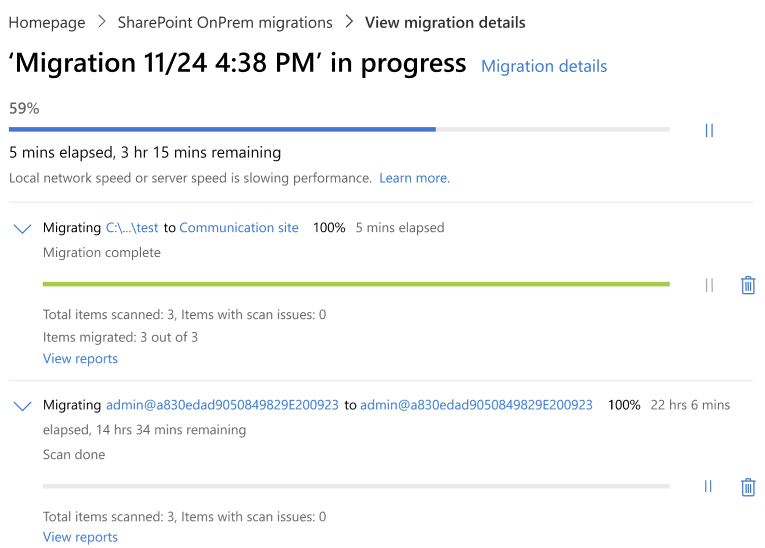
- Microsoft Learn, SharePoint Migration Tool reports. Source of the migration screenshot on this page. Checked 22 November 2026
- Microsoft Learn, Microsoft 365 Business Premium security FAQ. Intune and Entra ID P1 in Business Premium